

Welcome to the SEEN:app Focus Group
Follow these simple steps to join your class and get started with SEEN:app
Fall 2026 Class Code
iPhone users: update SEEN:app first
Install the latest version available in the App Store. Version 5.0.2 includes the current focus-group controls and account-recovery improvements. Open SEEN:app's App Store page and tap Update if it appears. After updating, fully close and reopen the app before following the steps below.
If the App Store only shows Open and you still cannot find Join a Focus Group, reopen the App Store listing later or email ben@seen.place.
Sign-in and Apple account update
On iPhone version 5.0.2 or later, Sign in with Apple is supported, including Apple's private relay email option. To keep your account connected correctly, continue using the same sign-in method you used when you first created your SEEN:app account. Do not create a second account with a different email address.
If you sign in by email, use the same email address when you join the focus group.
Already used Sign in with Apple, or unable to join? Email ben@seen.place from the email address you want associated with the focus group. Include your full name and class code LOPERSFALL26.
Email-code sign-in update
If an earlier attempt showed a server error after you entered an emailed verification code, that issue is fixed. Open SEEN:app, request a new code, and enter the newest one you receive. You do not need to reinstall the app or create another account.
Returning focus group participant?
Try the steps below normally. If your old focus group is still shown or Join a Focus Group is unavailable, Ben from Seen Place must manually enable rejoining. Email ben@seen.place with the email address you use for SEEN:app and mention UNK Fall 2026.
Who should I contact?
- Study, enrollment, or app questions: Ben Kraker at ben@seen.place. Ben is the main contact for this study.
- Class or course questions: Contact Dr. Krista Fritson.
1Download SEEN:app
On your smartphone, visit the link below to download SEEN:app from the App Store (iPhone) or Google Play (Android).
go.seen.place/unkOpens the correct store for your device
Already have SEEN:app on iPhone? Use the same link to open its App Store page and install the latest available version (at least 5.0.1) before joining.
2Navigate to "Join a Focus Group"
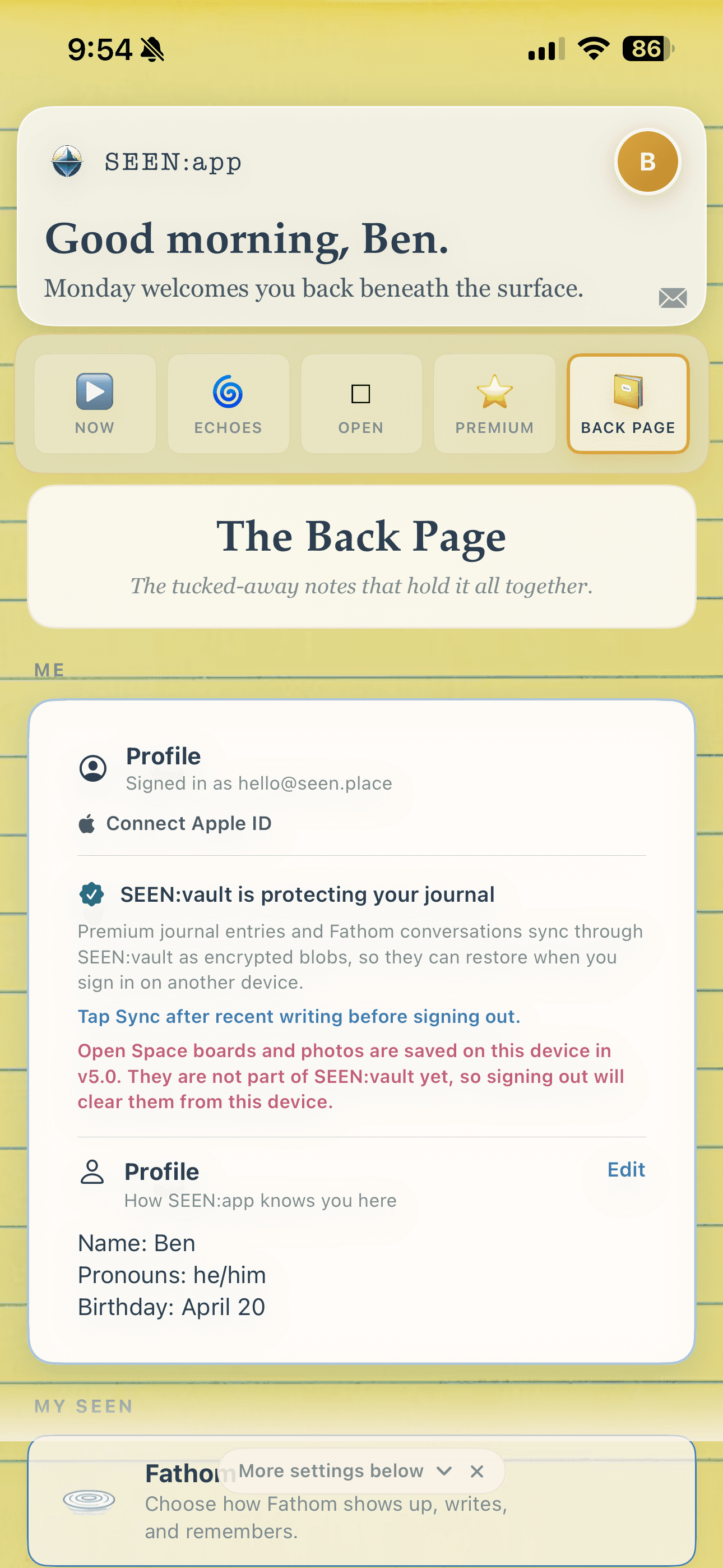
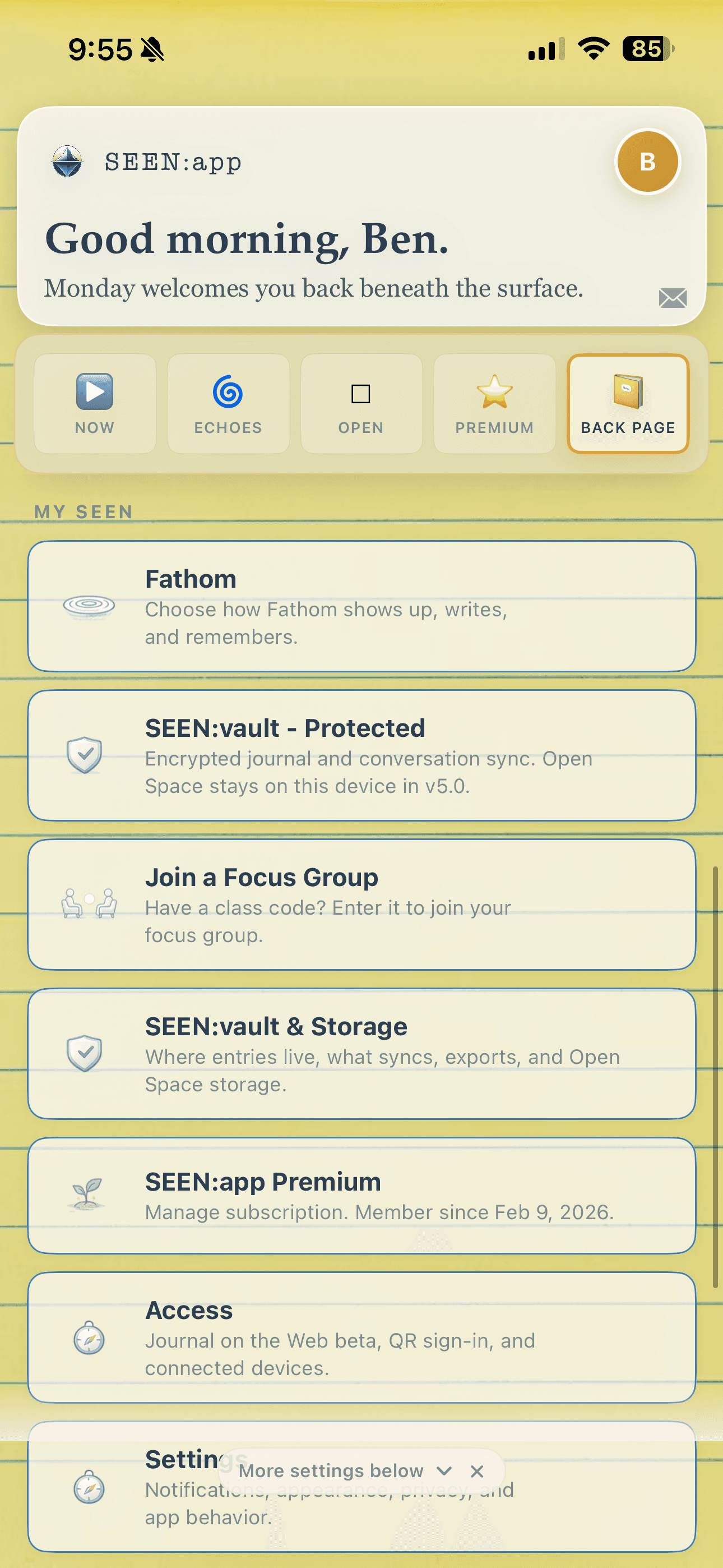
After opening the app and completing initial setup, open Back Page (the far-right tab). Scroll to MY SEEN, then tap "Join a Focus Group".
Android users: These screenshots show SEEN:app 5.0 on iPhone. Version 5.0 has not yet been released for Android, so your app will look and feel different. The current Android app still places Join a Focus Group on the Back Page. If you cannot find it, email Ben at ben@seen.place.
3Enter Your Class Code
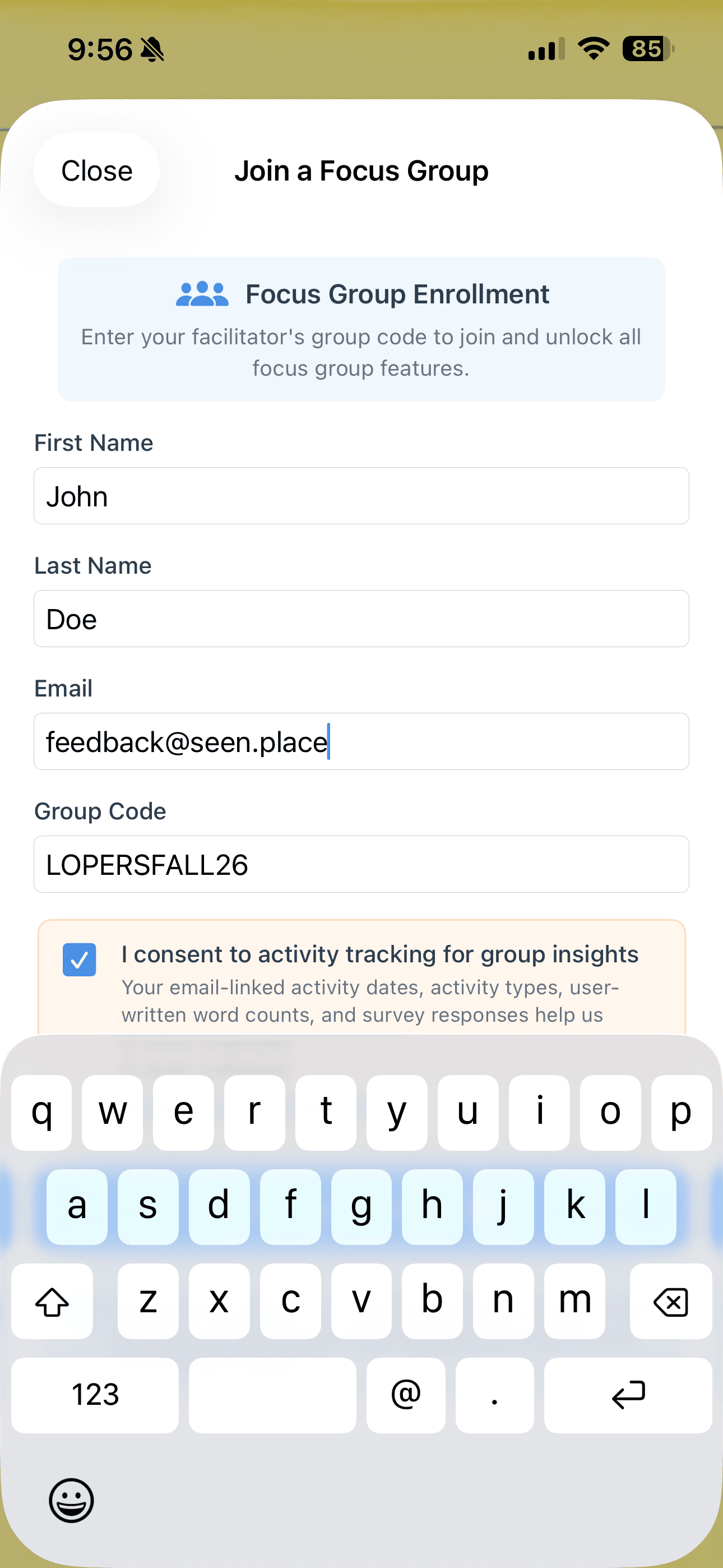
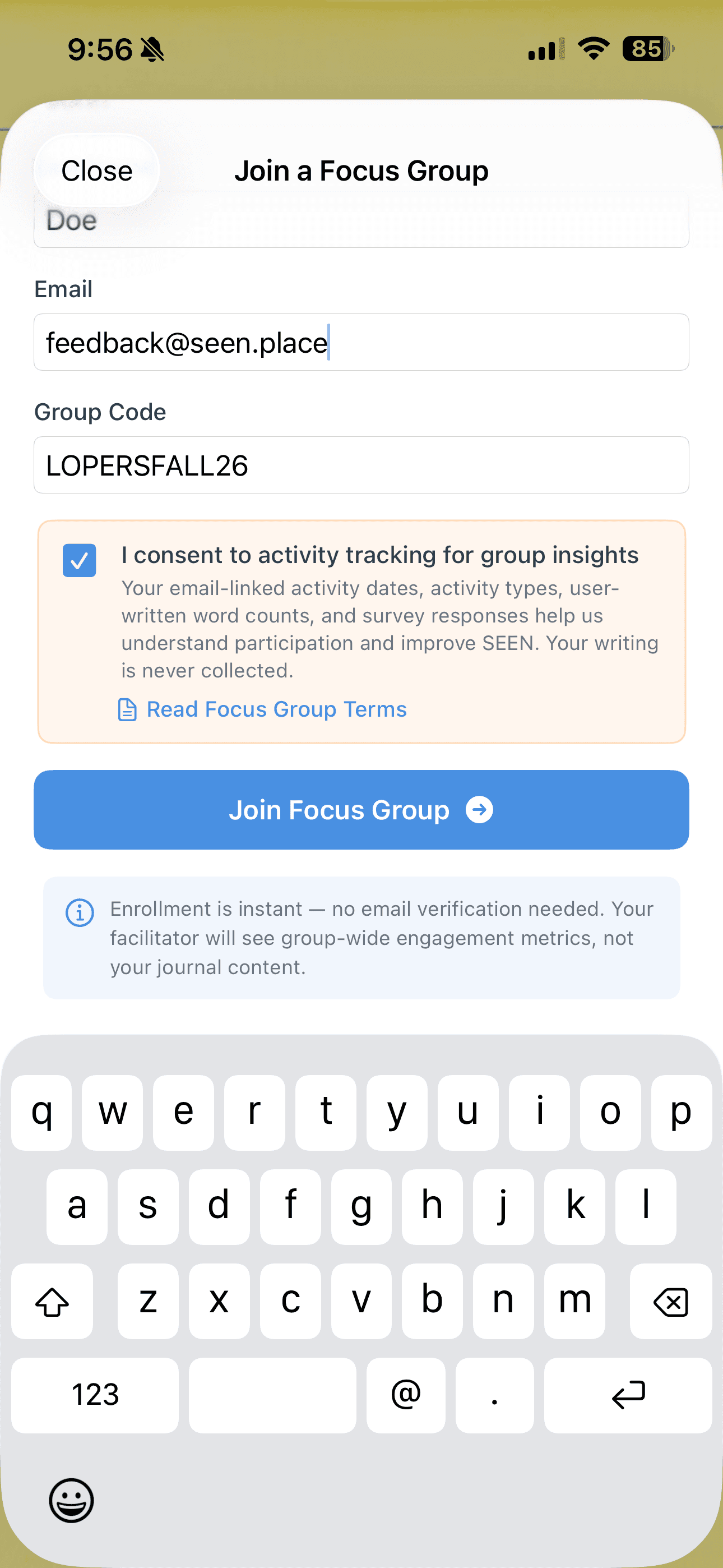
Enter the class code when prompted:
Read the consent information, check the consent box, and tap Join Focus Group. On iPhone v5, the Join a Focus Group option changes to Open Focus Group, and the UNK Fall 2026 banner appears above the main tabs.
Success! When the confirmation appears, tap Dive In. You are enrolled in the Fall 2026 SEEN:app Focus Group.
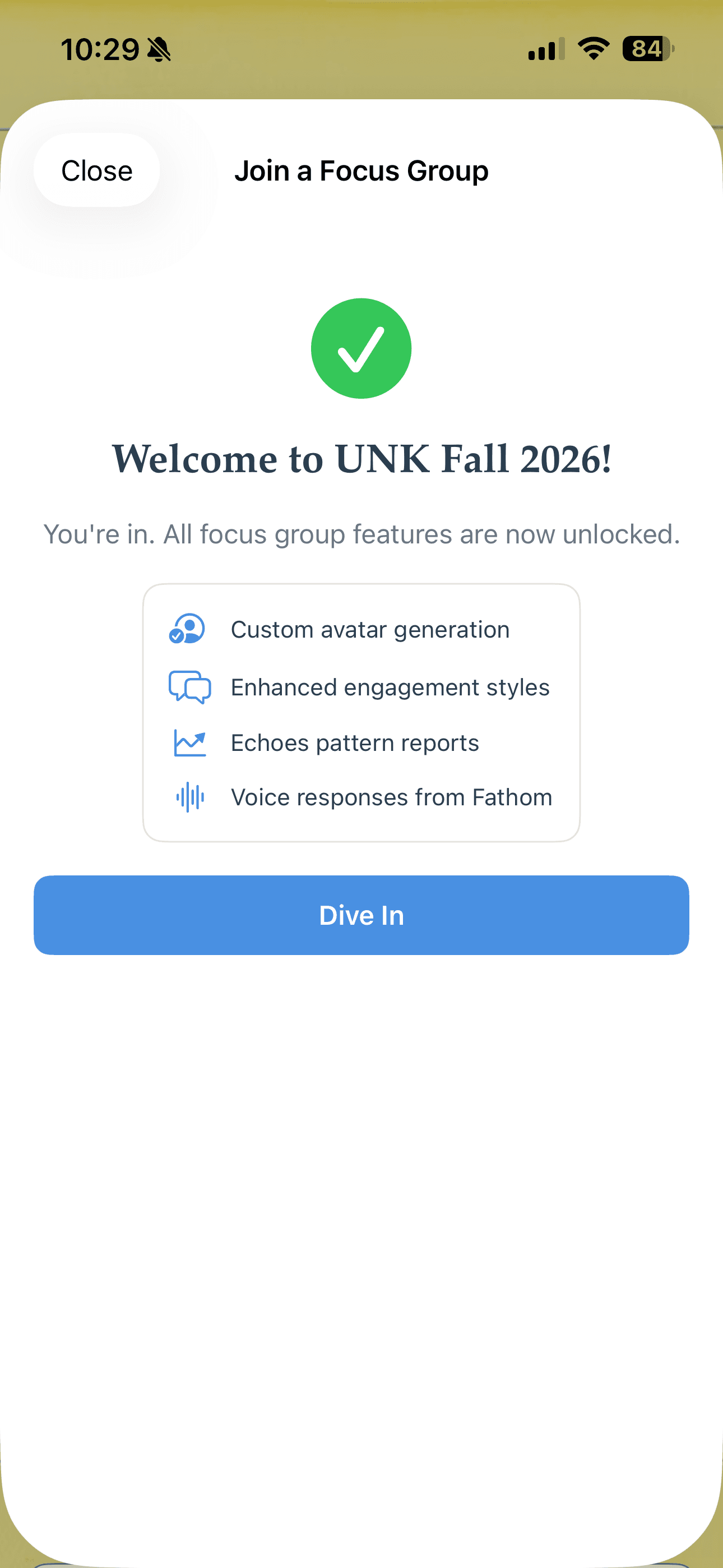
4Start Participating
Tap the UNK Fall 2026 banner above the main tabs whenever you want to check your focus group progress. The banner stays available as you move between tabs. You'll use it to:
- Review your consent and participation requirements
- Complete First Impressions after 1 journal + 1 other activity, the Midpoint Check-in at midpoint, and the Final Evaluation during the final week
- See how many meaningful engagements you have completed
Activity completed before joining can still count
When you enroll and consent, qualifying activity completed since the focus group began—even activity from before you entered the class code—will be included.
What counts as meaningful participation?
Complete 10 meaningful engagements during the focus-group period: 6 journal sessions and 4 other activities. A journal session counts whether you use Surface or Deep Dive; Deep Dive is encouraged, but not required. For the other four activities, use Open Space, Talk with Fathom, or up to two Echoes reports. You'll also complete First Impressions, Midpoint Check-in, and Final Evaluation check-ins.
- Journal: finish and save a Surface or Deep Dive journal session.
- Open Space: save a reflection and complete its Fathom exchange.
- Talk with Fathom: exchange at least five messages from you and five from Fathom, then choose End & Save.
- Echoes: open and read a report; no more than two Echoes reports can count.
Premium during the focus group
Joining unlocks the focus-group premium features through October 31, 2026.
Six months free after completion
After completing 6 journal sessions and 4 other qualifying activities, use the focus-group screen to request six months of free Premium. The request is reviewed and fulfilled by the SEEN team.
Getting to Know the App
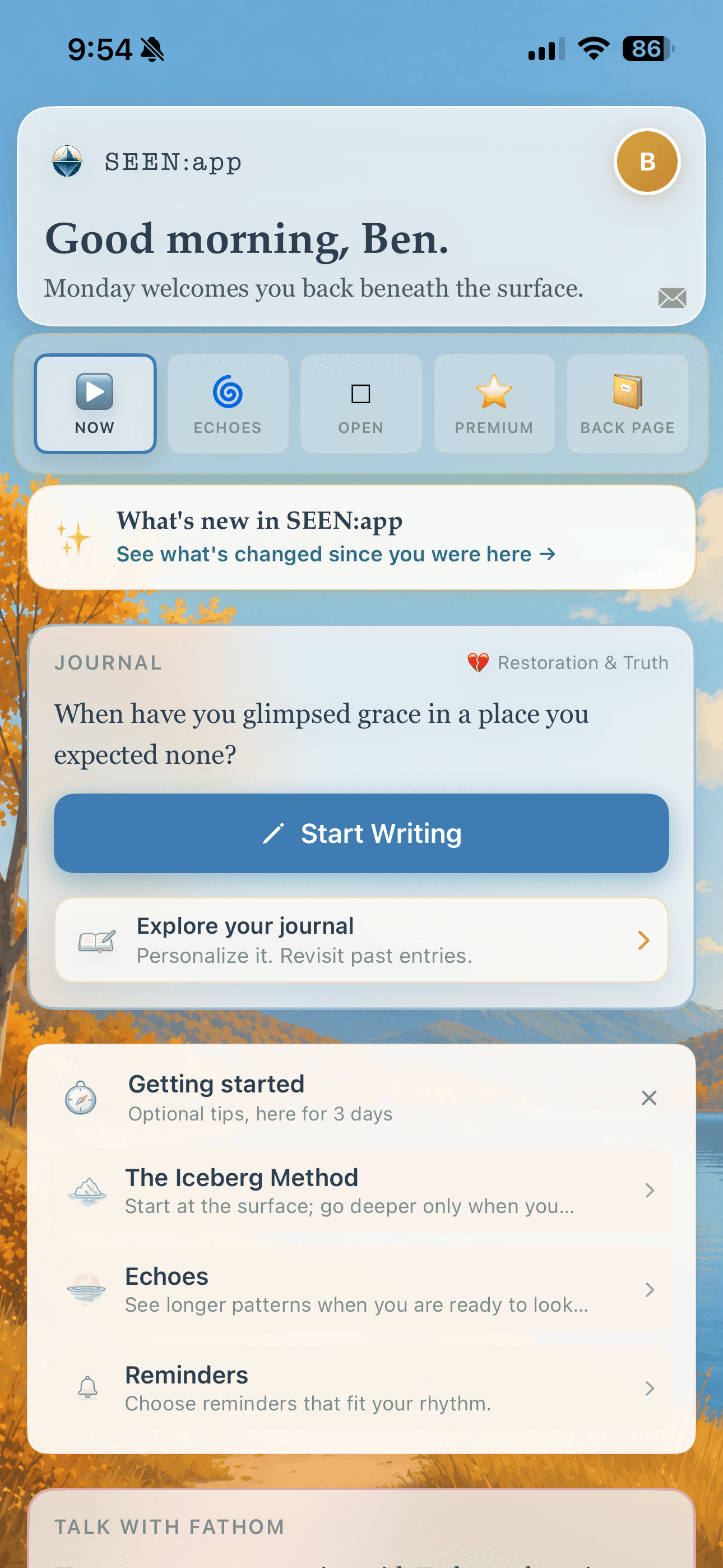
On iPhone v5, the five tabs are Now, Echoes, Open, Premium, and Back Page. Focus Group is a banner, not a tab.
▶ Now Tab
Your daily home base. Here you'll find:
- Daily Journal Prompts — Fresh prompts each day to guide your reflection
- Talk with Fathom — Chat with Fathom in real time, either by voice or text. In voice mode, Fathom's responses will play back to you.
👥 Focus Group
After you join with your class code, the UNK Fall 2026 banner appears above the main tabs and remains there while the study is active. Tap it to view progress and complete the three check-ins.
□ Open Tab
Tap Enter Open Space to collect thoughts and photos. When you are ready, invite Fathom to reflect on what you have gathered. Save your reflection and complete the Fathom exchange for it to count.
🌊 Echoes Tab
Echoes reads across multiple journal entries to surface recurring themes, quiet shifts, and the story taking shape.
- Choose 7, 14, 30, or 90 days, or select a custom date range.
- The selected range must contain at least two completed journal entries.
- Tap Listen for what's echoing to generate one Echoes report for that range.
- Open Archive to revisit reports you already generated.
Read the report for it to count toward your other activities. Up to two Echoes reports can count.
⭐ Premium Tab
Optional premium tools live here, including SEEN:Stories. Stories does not have its own tab and does not count toward focus-group participation.
📝 Back Page
Manage your profile, account, app preferences, and support resources:
- Fathom — Adjust how Fathom engages, speaks, and appears
- Profile — Update your name, pronouns, and other information
- Settings — Notifications, appearance, privacy, and app behavior
- Help & Guide — Reopen the welcome guide and find help
See Step 2 above for the current v5 Back Page screens.
Questions?
Study, enrollment, rejoining, or app questions: Email Ben Kraker at ben@seen.place.
Class or course questions: Contact Dr. Krista Fritson.